Best Time to Post on Instagram: 2025 Data-Driven Guide
Discover the powerful features that will transform how your team collaborates and manages projects.

Alto AI
on
Jan 11, 2026
Turning off comments on Facebook isn’t about silencing your audience. Think of it more as a strategic move to control the narrative and protect your brand. It's a vital tool for community management, especially when things get heated during a brand crisis, for sensitive announcements, or on ad campaigns that are attracting a ton of spam.
When and Why You Should Turn Off Facebook Comments
Deciding to hit the off switch on comments is a balancing act. On one hand, you want to foster community engagement. On the other, you need to safeguard your brand's reputation.
While open dialogue is usually a good thing, there are specific, high-stakes scenarios where disabling comments isn't just helpful—it's necessary. An uncontrolled comment section can quickly derail your message, erode the trust you've built with your audience, and tank the ROI on your ad spend.
Here are a few key situations where disabling comments just makes sense:
During a Brand Crisis: When misinformation or intense negativity starts to spiral out of control, turning off comments temporarily stops the fire from spreading. This gives your team the breathing room to manage the situation from a controlled position.
For Sensitive Announcements: Posting about layoffs, major policy changes, or other delicate topics? Disabling comments prevents a public pile-on and ensures your core message is delivered without getting twisted and distorted by angry reactions.
On Spam-Ridden Ad Campaigns: If your ads are consistently getting bombarded with bots, scams, or irrelevant links, turning off comments protects your legitimate audience. It also prevents you from wasting your ad spend on moderating endless noise.
This flowchart can help you make a quick call on whether it's the right time to lock down a post.
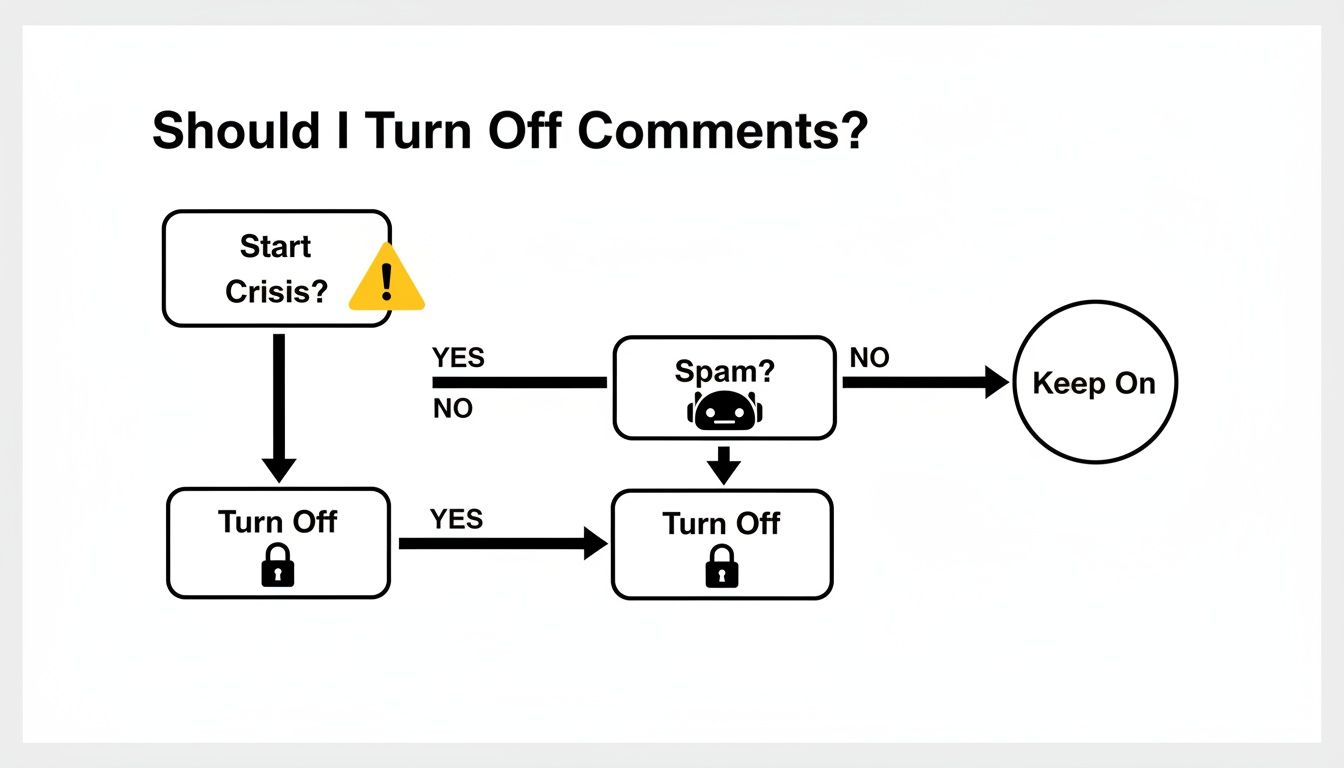
As the chart shows, acute issues like a full-blown crisis or an overwhelming flood of spam are clear triggers for disabling comments.
Protecting Your Brand in a High-Volume World
Over the last few years, proactive comment control has become a core brand-safety tactic. While Meta’s own data shows it's getting better at removing policy-violating content, the sheer volume is staggering. This means most of its moderation is reactive, happening only after harmful content has already been seen by your audience.
Turning off comments is less about censorship and more about curation. It ensures the space you've built remains constructive and safe for the audience you actually want to reach.
A proactive approach isn't just about reacting to problems; it's also about setting clear expectations from the start. You can learn more about fostering a positive environment by checking out our guide on community guidelines examples for Facebook and Instagram.
Controlling Comments on Your Personal Facebook Profile
Let’s be honest, sometimes you just don't want to deal with a flood of comments on your personal posts. While Facebook doesn't give you a simple "off" switch for your personal profile, it does offer some pretty powerful ways to control who can chime in.
It's all about managing who sees your posts in the first place. You can lock things down before you even hit "Post."
When you're drafting a new post, just look for the audience selector. It's that little button that usually says Public or Friends. Tapping that lets you choose exactly who gets to see—and comment on—what you share. For the most control, you can limit comments to just your friends.
Adjusting Comments on Existing Posts
What if a post you already shared is attracting the wrong kind of attention? No problem. You can go back and change the comment settings at any time.
Here's how to do it:
Go find the post on your timeline.
Click the three-dot menu (•••) in the top-right corner of that post.
From the dropdown, select Who can comment on your post?
This is where you can really tighten things up. You can narrow the audience down to just Friends, or even just the Profiles and Pages you mention. Choosing that last option effectively shuts down comments for pretty much everyone else, giving you a much quieter post.
One weird quirk to know: You can't completely disable comments on a personal post unless its privacy is set to "Public." For posts shared only with "Friends," the most you can do is limit comments to people on your friends list. Honestly, that's usually enough to stop any unwanted noise.
Whether you set your audience proactively or tweak it after the fact, you're always in the driver's seat for the conversations happening on your personal timeline.
How to Manage Comments on a Facebook Business Page
If you’re running a Facebook Business Page, you’ve probably noticed that comment management is a bit different. Unlike your personal profile, there’s no big “off” switch for your entire page. Instead, Facebook gives you control on a post-by-post basis, which is perfect for handling specific conversations.
This targeted approach is a lifesaver for sensitive announcements or posts that suddenly attract a flood of spam. Just find the specific organic post on your Page, click the three-dot menu (•••), and hit Turn off commenting. Just like that, all existing comments disappear from view, and no one can add new ones.

Beyond the Off Switch: Smarter Moderation Tools
Turning comments off completely is effective, but it’s a blunt instrument. It silences everyone, including your loyal followers. A more sustainable approach is to use Facebook’s built-in moderation tools to automatically filter out the bad stuff without shutting down the conversation.
Think of these tools as your first line of defense. Proactive comment control isn't just a nice-to-have anymore; it's a necessity for any brand. While hate speech makes up a tiny fraction of all content, the sheer volume is staggering. Meta's own data shows it still takes action on millions of pieces of hate speech content every quarter, which tells you all you need to know about why you need your own safeguards.
Facebook gives you a few key tools to get started:
Profanity Filter: This automatically hides comments containing a list of commonly recognized offensive words. It's a quick and easy win.
Keyword Blocklist: This is where you can get specific. You can create a custom list of words, phrases, and even emojis you want to be hidden automatically. It's perfect for blocking competitor names, known spam phrases, or offensive slang the profanity filter might miss.
To help you decide which tool fits your needs, here's a quick breakdown of the native options available for your Page.
Facebook Comment Control Methods for Business Pages
Method | What It Does | Best For | Limitation |
|---|---|---|---|
Turn Off Commenting | Completely disables new and existing comments on a single post. | Sensitive announcements, posts attracting trolls, or when you can't actively moderate. | Silences all conversation, both positive and negative. Can only be done post-by-post. |
Profanity Filter | Automatically hides comments with words from Facebook's built-in profanity list. | A basic, set-it-and-forget-it layer of protection against common swear words. | The list isn't customizable and may miss niche slang or creatively spelled insults. |
Keyword Blocklist | Automatically hides comments containing specific words, phrases, or emojis you define. | Blocking spam, competitor mentions, specific slurs, or campaign-specific negative terms. | Requires you to manually build and maintain the list of keywords. |
Moderation Assist | Sets up automated rules to hide comments based on criteria like keywords, links, or author history. | Creating a robust, automated moderation system that runs 24/7. | Takes time to configure properly and might occasionally hide legitimate comments. |
These automated settings can be a game-changer. They transform comment management from a constant, reactive chore into a proactive, automated strategy.
Think of it like setting up a bouncer for your page—it checks everyone at the door based on your rules, so you don't have to deal with trouble after it's already started.
This automated approach is at the heart of Moderation Assist, a powerful feature that lets you build even more sophisticated rules. To dive deeper, check out our guide on how to use Facebook Moderation Assist and really get your page's comment section under control.
Turning Off Comments in Facebook Groups
Running a Facebook Group is a whole different ballgame than managing a Business Page. As an admin, you have much more direct control to shape conversations and keep your community healthy.
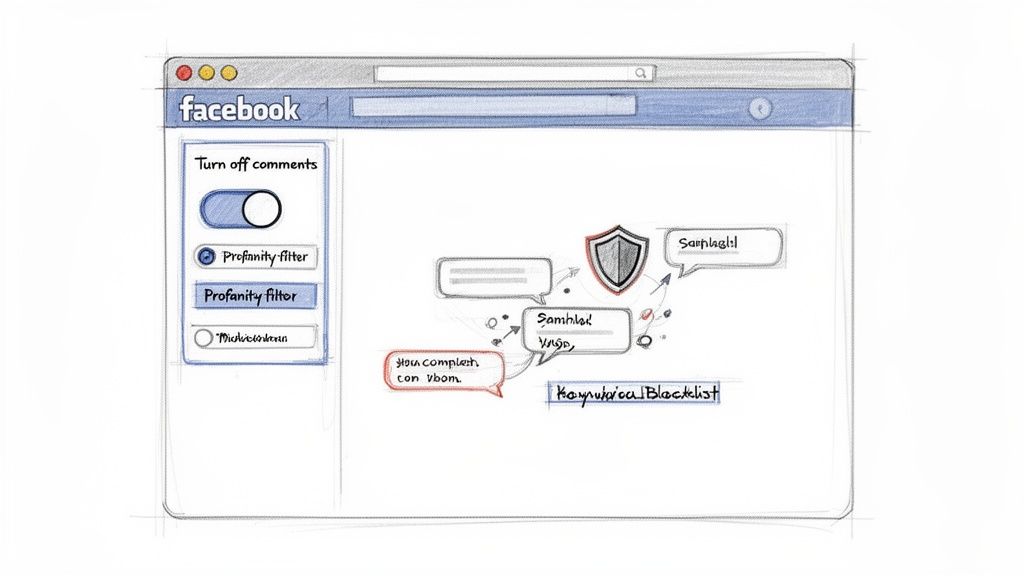
Unlike Pages, where your options are limited, Groups give you a simple, direct way to completely turn off commenting on any post. This is a must-have tool for any admin who’s had to step in and shut down a heated debate that’s gone off the rails or simply needs to close the discussion on an official announcement.
It's easy to do. Just head to the specific group post, click the three-dot menu (•••), and hit Turn off commenting. That’s it. The thread is instantly locked, stopping any new replies and putting a neat end to the conversation.
Proactive Controls for Group Health
Of course, turning off comments is a reactive move. The best group management is always proactive, and Facebook gives group admins some great tools to get ahead of problems before they even start.
These features help you ensure only constructive content ever makes it into your group’s feed in the first place.
Post Approval: When you turn this on, every member's post lands in a review queue. Nothing goes live until you or a moderator gives it the green light, giving you total control.
Keyword Alerts: This is your early warning system. You can create a list of specific keywords or phrases, and whenever a member uses one in a post or comment, you get an immediate notification to check it out.
Think of these tools as a quality control system for your community. Post approval is your gatekeeper, and keyword alerts are your alarm system. Together, they keep the space safe and on-topic.
When you start using these features together, you'll find you can manage discussions effectively without constantly having to shut them down.
Moving Beyond Manual Comment Moderation
If you're running paid social campaigns at any real scale, you've probably realized Facebook's built-in comment moderation tools just don't cut it. Manually toggling comments off for every ad or setting up a few keyword filters is a decent starting point, but it's purely reactive. It’s also completely unsustainable.
Once you have dozens of ads live, each pulling in hundreds of comments, trying to keep up manually becomes a full-time job you can’t win.
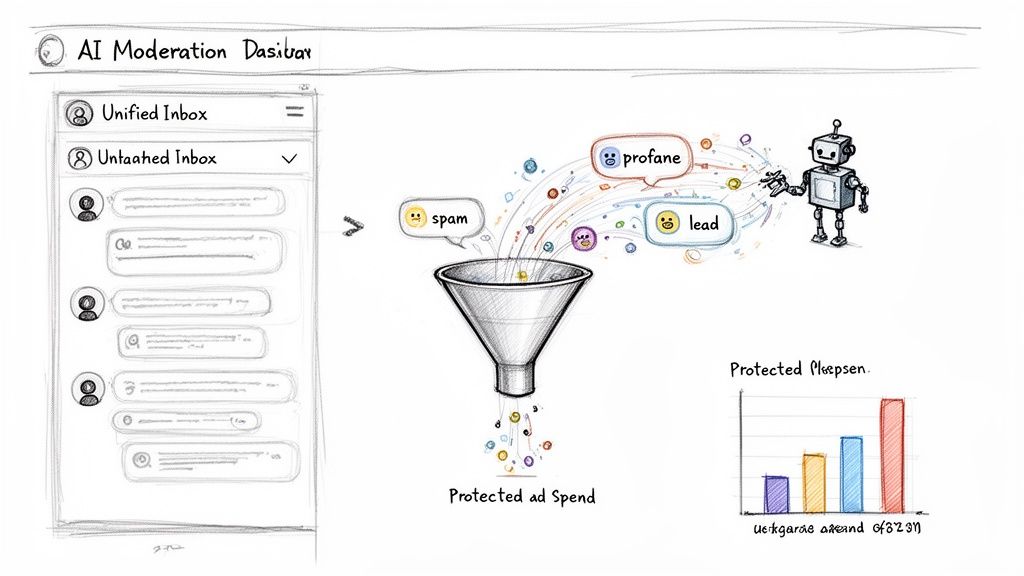
This is exactly where automated, AI-powered solutions come into play. These third-party tools go way beyond simple keyword blocking, adding an intelligent layer of protection over your brand and ad spend. They’re built to handle the sheer volume and speed of ad comments, turning a tedious chore into a genuine strategic advantage.
The Power of an Automated System
Imagine a system that works around the clock, catching spam and trolls 24/7—long after your team has logged off. That’s the real promise of dedicated comment moderation software. These platforms plug directly into your Facebook and Instagram accounts and start working immediately.
Here's what that actually looks like in practice:
Instant Spam Removal: The second a comment with a competitor link, profanity, or a known spam phrase gets posted, it’s hidden. No delay, no human needed.
Unified Smart Inbox: Stop bouncing between different ads and posts. All your comments and DMs get funneled into a single, clean dashboard.
Sentiment Analysis: The AI can instantly tag comments as positive, negative, or neutral. This lets your team filter straight to hot leads or urgent customer complaints that need attention now.
This is a fundamental shift. You stop wasting time and money deleting spam and start focusing your team's energy on high-intent customers who are on the verge of converting. It’s about protecting your brand’s reputation while finding new opportunities to grow.
Automating the grunt work also brings consistency. Every single comment is judged by the same rules, which means your brand voice and community guidelines are enforced across every ad and post, without fail.
If you want to get even more proactive, our guide on how to approve Facebook comments before they're posted will show you how to get complete control over what appears on your page.
Frequently Asked Questions About Facebook Comments
Even after you've got a game plan for your comments, a few tricky questions always seem to pop up. Let's run through some of the most common ones I hear from clients so you can handle these situations like a pro.
If I Turn Off Comments Will It Hurt My Post's Reach?
This is the big one, isn't it? The short answer is: maybe a little. Facebook's algorithm definitely likes to see active discussions, so turning off comments removes some of those positive engagement signals. You might see a small dip in organic reach.
But here's the thing—it's a strategic trade-off. For ads or sensitive announcements, the value of maintaining brand safety and controlling the narrative almost always outweighs a minor drop in reach. You’re choosing to protect your message from spam or negativity, and that’s a smart move.
Can I Turn Off Comments on a Facebook Ad?
Absolutely. You can definitely turn off comments on your Facebook ads, but you have to do it manually after the ad goes live.
Just head over to your Business Page, find the ad post (it'll have the "Sponsored" label), and click the three-dot menu (•••). From there, select "Turn off commenting." The only catch is you have to do this for every single ad creative you're running.
What Happens to Existing Comments When I Turn Them Off?
When you flip the switch, all the comments that are already there instantly get hidden from public view. They aren't deleted, just tucked away.
The best part is that this is completely reversible. If you change your mind and re-enable comments later, every single one of the old comments will pop right back up, just as they were.
This gives you a ton of flexibility. You can pause a heated conversation without losing all the engagement you've already built up.
Is There a Way to Turn Off All Comments on My Page at Once?
Nope, Facebook doesn't have a magic "kill switch" for all comments across your entire Page. You have to manage them on a post-by-post basis, which gives you more control but also means more manual work.
While you can't shut everything down in one click, you can get pretty close with automation. Tools like Facebook's own Moderation Assist let you set up rules to automatically hide comments with links, profanity, or specific keywords. It's a great first line of defense that can handle most of the junk for you.
Stop wasting time on manual moderation and start turning comments into customers. Meet Alto AI centralizes all your social DMs and comments into one smart inbox, automatically hiding spam and surfacing sales leads so you never miss an opportunity. See how it works at https://meetalto.ai.