How to Tag People on Instagram Comments A Guide for Brands
Learn how to tag people on Instagram comments to boost engagement. Our guide covers best practices for brands, troubleshooting, and managing mentions at scale.

Alto AI
on
Jan 7, 2026

Tagging someone on Instagram is dead simple: just type the @ symbol followed by their username in a comment. As you start typing, a list of accounts will pop up, letting you pick the right one and send them a notification. This little action is the bedrock of building a real community on the platform.
Why Tagging in Comments Is a Game Changer for Brands
Before we get into the nitty-gritty, let's talk about the strategic power packed into a simple @mention. Knowing how to tag people on Instagram comments isn't just a technical skill—it's a core part of modern community management and social selling. For brands, this feature can turn passive scrolling into active, valuable engagement.
Think of each tag as a digital tap on the shoulder, pulling someone directly into a conversation. This creates a powerful ripple effect that goes way beyond a single post.
This visual from Instagram’s own help center nails the core idea of building connections.
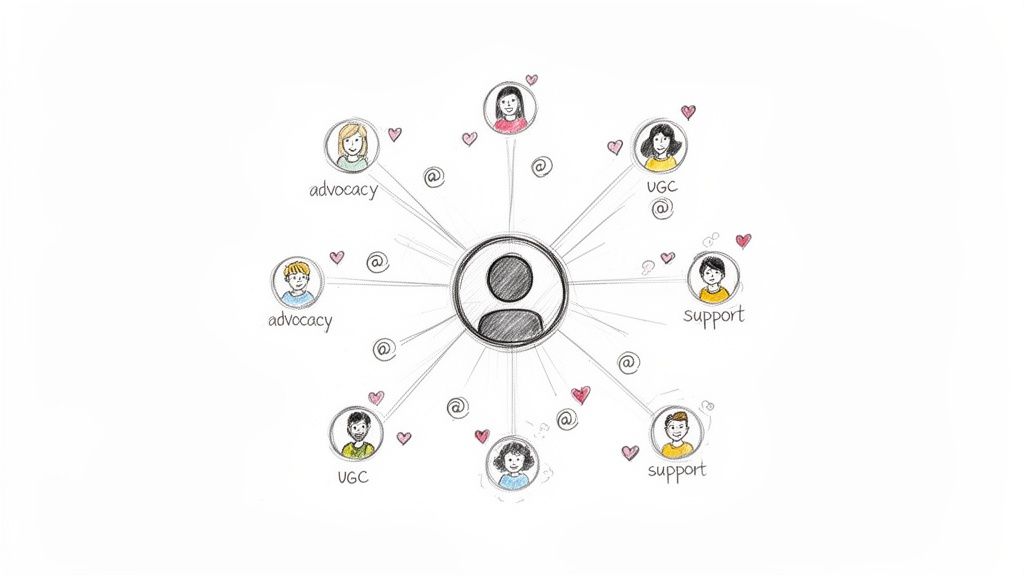
As the image shows, one simple mention can branch out into all kinds of strategic wins, from customer support to user-generated content and brand advocacy.
Amplify Your Brand Voice
When you tag a happy customer, a contest winner, or a collaborator, you're inviting them into a public conversation. This simple act can turn a passive follower into an active participant—and maybe even a brand advocate.
Their response adds a layer of social proof and authenticity to your content, making your brand feel more human and approachable. It's a real conversation, not just a broadcast.
Drive User-Generated Content
Tagging is also a fantastic way to spark user-generated content (UGC). Let's say a customer asks where they can buy a specific product in your post. You could tag another user who recently posted a photo with that exact item.
This move does two things at once: it answers the original question and showcases a real customer loving your product. That kind of authentic endorsement is far more persuasive than any polished ad you could run.
Tagging isn't just about getting attention; it's about giving it. By highlighting your community members, you create a loyal following that feels seen, heard, and valued. This is the cornerstone of building a strong brand presence on social media.
A Practical Walkthrough to Tagging on Any Device
Knowing how to tag people in Instagram comments is a fundamental skill, but the exact process can feel a little different depending on where you're working. Whether your team is managing social media on the go or from a central office, getting the mechanics down is key to a smooth and consistent engagement workflow.
Let's walk through exactly how to tag users, no matter which platform you're on.
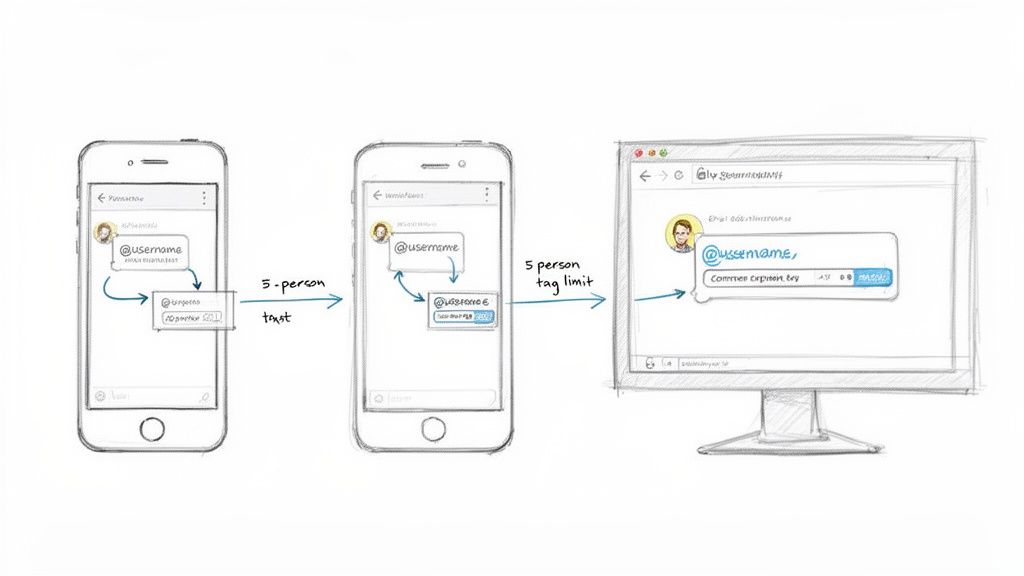
The core action is the same everywhere. You just type the @ symbol followed immediately by the username you want to mention—no space in between. As you type, Instagram’s predictive text will pop up a list of accounts, making it easy to select the right one.
Tagging From a Smartphone (iOS and Android)
This is where most of the action happens. The mobile experience on both iOS and Android is virtually identical, built for quick, on-the-fly interactions.
Here’s the breakdown:
Open the Comments: Find the post you want to comment on and tap the speech bubble icon to pull up the comment thread.
Start the Tag: In the "Add a comment..." field, just type the
@symbol.Find the User: Begin typing the first few letters of their username. A list of suggestions will appear, usually prioritizing people you follow or have recently interacted with.
Confirm and Post: Tap the correct user from that list. Their handle will be added to your comment, turning into a blue, clickable link. Finish your message and hit "Post."
It's the bread and butter of daily engagement, perfect for everything from answering a quick question to looping in a collaborator.
Tagging From a Desktop Browser
For social media managers working from a computer, tagging in comments through the Instagram web interface is just as simple. In fact, the larger screen and a real keyboard can make managing multiple conversations feel a lot faster.
Just navigate to the post and find the comment field at the bottom. The process mirrors the mobile app exactly: type the @ symbol, start writing the username, and a dropdown list will appear. Click the right account, finish your comment, and click "Post."
For a quick side-by-side look, here's how the functionality stacks up across devices.
Tagging Functionality Across Devices
Feature | Instagram Mobile App (iOS/Android) | Instagram Web (Desktop) |
|---|---|---|
Initiating a Tag | Type | Type |
User Suggestions | Predictive dropdown appears as you type | Predictive dropdown appears as you type |
Tag Limit | 5 users per comment | 5 users per comment |
Confirmation | Tagged username appears in blue | Tagged username appears in blue |
Workflow | Ideal for quick, on-the-go engagement | Great for high-volume comment management |
As you can see, Instagram has kept the core experience consistent, which is great for teams that switch between devices.
Key Nuances and Limitations to Remember
While the action itself is simple, there are a few rules of the road. Keeping these in mind will help you engage more effectively and avoid any frustrating little errors.
The Five-Person Rule: Instagram caps you at tagging a maximum of five accounts per comment. If you need to mention more people, you’ll have to split them across multiple comments. This is a hard limit.
Tagging Private Accounts: You can tag a private account, but only their approved followers will actually see the comment and the tag. To everyone else, it will just be black text.
Did the Tag Work? Once you post the comment, the username should immediately appear in blue. If it stays as black text, the tag failed—usually because of a typo in the username. Double-check the spelling and try again.
A successful tag always sends a notification to the user, pulling them directly into the conversation. That's the whole point, right? It's about personally and directly engaging with a specific member of your community.
Solving Common Instagram Tagging Problems
Even the most straightforward features can hit a snag, and Instagram tagging is no exception. If you’ve ever typed an @mention only to have it fail, you’re not alone. The good news is that most of these issues are quick fixes once you know what’s causing the problem.
Let’s walk through the most common tagging errors and exactly how to solve them so you can keep your community engagement flowing smoothly.
Why a Username Won’t Appear
This is easily the most frequent issue. You type @ and start entering a username, but... crickets. Nothing pops up. This almost always boils down to one of a few simple reasons:
A Simple Typo: It happens to the best of us. The most common culprit is a small spelling mistake. Double-check that you have the username exactly right, including any underscores or numbers.
A Changed Handle: People update their Instagram handles all the time. If they've recently rebranded or just wanted a change, their old username won't work anymore. You'll need to find their new one to get the tag to stick.
They Blocked You: This one's less common for brands, but it's a possibility. If another account has blocked your profile, you won't be able to find their username to tag them. They effectively become invisible to you on the platform.
Another reason could be the user's settings. Some people have private accounts with specific privacy controls that restrict who can mention or tag them, which can also prevent their name from appearing.
Dealing with the Tag Limit Error
Instagram has a hard and fast rule: you can only tag up to five people per comment. Try to add a sixth, and the feature just won't work. You'll either see an error or the tags will simply fail to post.
The workaround is thankfully straightforward—just split your mentions across multiple comments.
Say you're announcing ten winners for a giveaway. You’d post one comment tagging the first five, then immediately reply to your own post with a second comment tagging the next five. This keeps your announcement clean and guarantees every single person gets that notification.
When you're managing a ton of interactions, hitting these limits is a daily reality. For brands looking to move past manual workarounds, exploring Instagram comment automation can be a game-changer for organizing and prioritizing responses at scale.
When a Tag Disappears After Posting
This one can be seriously confusing. You write a comment, the tag looks perfect (it's blue and clickable), you hit "Post," and then... poof. It's gone. The username you tagged either reverts to plain black text or vanishes entirely.
This usually happens for two main reasons:
Instagram’s Spam Filters: If you're firing off too many comments with tags in a short burst, Instagram’s algorithm might flag your activity as spam. It’s a protective measure, and it can cause your tags to fail automatically. The fix? Just slow down your pace a bit.
User’s Privacy Settings: Users have a surprising amount of control over tags. They might have their account set to manually approve any tags, or they may have simply removed the tag from your comment after you posted it. If this happens consistently with a specific user, it's best to respect their settings and avoid tagging them in the future.
The Unwritten Rules of Tagging for Brand Engagement
Knowing how to tag someone in an Instagram comment is the easy part. The real skill is knowing when and why you should.
Get it wrong, and your brand can come across as spammy, intrusive, and totally out of touch. Misusing the @mention feature is one of the fastest ways to break the trust you’re trying so hard to build with your community.
The guiding principle here is simple: relevance is everything. Every single tag should add real value to the conversation, both for the person you’re tagging and for everyone else reading the comment thread. Think of it like inviting someone to a party—you'd only extend the invite if you were pretty sure they'd actually want to be there.
When Tagging Adds Value
Some situations are practically made for a strategic @mention. These are the green lights, where a tag feels helpful and authentic, actually strengthening your relationship with your audience.
Announcing Giveaway Winners: This is the most obvious and welcome use of a tag. Mentioning winners directly makes sure they get the good news and gives them a chance to celebrate with the community.
Featuring User-Generated Content (UGC): When you share a customer’s photo or video, you should absolutely tag their account in the comments (as well as in the caption). It’s the right way to give credit and points your followers to the original creator.
Collaborations and Partnerships: Tagging a partner brand, an influencer you're working with, or another collaborator is a must. It brings them into the conversation and encourages their community to join in, too.
Answering a Question with an Expert: Let's say a follower asks a super technical question about your product. If you have a team member who’s the perfect expert to answer, tagging them to jump in is a fantastic way to offer personalized, high-value support.
When Tagging Becomes Spam
On the flip side, there are tagging tactics that do way more harm than good. They might seem like a clever shortcut to get more eyes on your post, but they almost always backfire, leading to annoyed users, spam reports, and a tarnished brand reputation.
Steer clear of these practices:
Mass-Tagging Random Accounts: Never, ever tag a list of people who have zero connection to the post just to grab their attention. This is the quickest way to get your comment reported and your account flagged.
Tagging Unrelated Influencers: Mentioning a huge celebrity in a comment about your new product line just looks desperate and transparent. It offers no value and makes your brand look small.
Tagging Past Customers on New Promotions: Just because someone bought from you six months ago doesn’t mean they want a public shout-out on every single one of your sales posts. Respect their space and let your content reach them the old-fashioned way.
The golden rule? Treat every tag like a personal invitation. If the person you're tagging wouldn't be genuinely interested or pleased to be included, you probably shouldn't do it.
While a thoughtful tag can boost engagement, the bigger picture around discoverability has changed. This is especially true with hashtags, where the old playbook has been thrown out. Recent data shows that posts without any hashtags achieved 23% higher reach than those packed with them.
Sure, smaller accounts (under 1,000 followers) can still see a nearly 80% interaction boost with 11+ hashtags, but that advantage disappears for larger profiles. Today, the expert consensus is to use just 3-5 highly relevant hashtags—a complete 180 from the old strategy of stuffing in 20-30.
Ultimately, building a strong community on Instagram is about being thoughtful and authentic. For more hands-on advice, check out our complete guide on how to manage Instagram comments effectively. Real, relevant, and respectful engagement will always win out over spammy shortcuts.
How to Manage Instagram Mentions at Scale
As your brand’s Instagram presence grows, trying to track every single tagged comment manually becomes a losing battle. What starts as a few notifications you can easily handle quickly turns into a chaotic flood, especially once you start running paid ads. It's a great problem to have, sure, but it's still a problem.
If you don't have a system, you're guaranteed to miss things. Crucial sales opportunities get buried in comment threads. Customer support questions go unanswered, tarnishing your brand's reputation. Every missed mention is a potential lost customer or a crack in the community you've worked so hard to build. The only way forward is to stop reacting and start building a proactive, scalable system.
This is where smart automation comes in.
Moving From Manual Chaos to Automated Clarity
Let's be real: relying on Instagram’s native notifications just doesn’t work for a growing brand. Your team needs a central hub to manage all these conversations without losing their minds. This is exactly what platforms like Meet Alto AI were built for—they pull all your comments and DMs from every single post and ad into one smart inbox.
This unified view cuts through the noise immediately. No more jumping between dozens of post notifications. Instead, your team sees every interaction in one place. AI-powered tools then take it a step further by sorting comments, filtering out spam and trolls, and even helping draft on-brand replies. This frees up your team to focus on high-intent conversations that actually move the needle.
The goal of automation isn't to replace human connection but to enhance it. By filtering out the noise, you can dedicate more time and energy to the customers who need your attention most, turning simple interactions into lasting relationships.
Think of it as a simple three-step process for maintaining quality engagement, even when you're dealing with hundreds of comments a day.
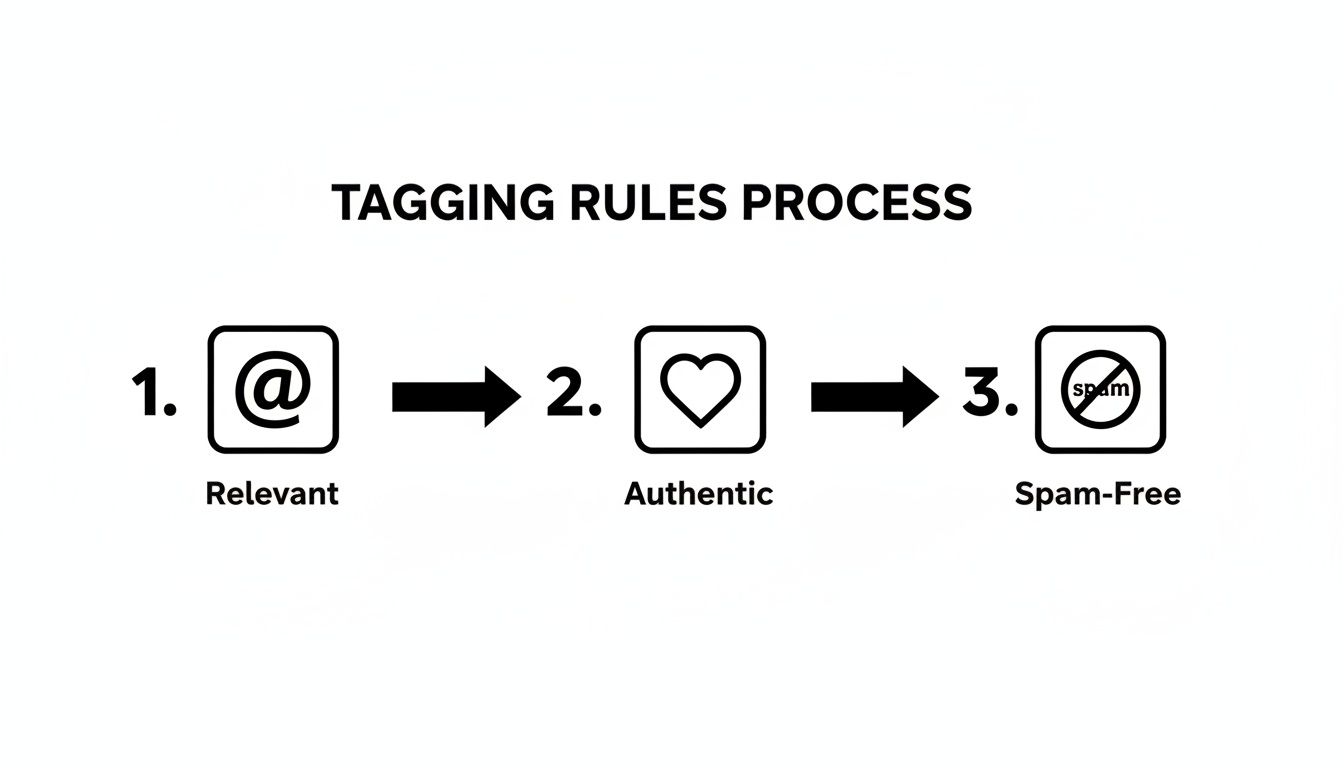
This kind of workflow makes sure every tag is purposeful. It reinforces positive community interactions and protects your brand from irrelevant noise. A streamlined system is the blueprint for turning all that engagement into a real business asset.
Optimizing Your Workflow With Smart Insights
A scalable system does more than just handle volume; it gives you powerful insights into what's actually working. For example, a big strategic choice these days is where to put your hashtags—in the caption or in the comments? While about 87% of brands still stick them in the main caption, there's interesting data showing that accounts with over 100,000 followers can see a 15.9% bump in reach by dropping them in the first comment instead. It keeps the caption looking clean while still getting the algorithmic benefits.
Understanding little details like this is how you fine-tune your approach over time. With an intelligent inbox, your team can respond faster and make data-driven decisions to boost content performance. A smart platform also makes it dead simple to find specific feedback or user-generated content. You can even learn how to search in Instagram comments to pinpoint these valuable interactions.
Ultimately, managing mentions at scale is about building a system that protects your ad spend, enhances your brand's reputation, and efficiently turns conversations into customers.
Instagram Tagging FAQs: Your Top Questions Answered
Even when you've got the basics down, some tricky questions always seem to pop up right when you're in the thick of managing a busy comment section. Let's get you some quick, clear answers to the most common head-scratchers about tagging people in Instagram comments.
Can You Tag Someone in an Edited Comment?
The short answer is no, you can't. It's one of those little Instagram quirks. Once a comment is live, you can go back and edit the text, but you can't add a new, working @mention. If you try, the username will just show up as plain text and won't send them a notification. Bummer, I know.
If you’ve forgotten to tag someone, your best bet is to just delete the original comment and repost it with all the right tags. Another quick fix? Just reply to your own comment and add the tag there. Easy.
What’s the Tagging Limit for a Single Comment?
Instagram lets you tag a maximum of five accounts in one comment. That's the hard limit. They put this cap in place to cut down on spam—you know, those comments where someone tags half the planet hoping to get noticed.
So, what do you do if you need to tag more than five people, like when you're announcing a big group of giveaway winners? Just break it up. Post the first comment with five tags, then reply to your own comment with the next five, and keep that chain going until everyone's tagged.
Here's a simple rule to live by: one comment, five tags max. If you try to sneak a sixth one in, it just won't work. The tag will fail, the person won't get a notification, and you’ll have wasted a perfectly good engagement opportunity.
Why Can’t I Tag a Specific Person?
Ever type out a username perfectly and... nothing? It won’t pop up, it won’t turn blue, it just sits there. It's a frustratingly common problem, and it usually boils down to one of a few things:
You've got the username wrong. A simple typo is the number one culprit. It happens to the best of us.
The user has blocked your account. If they've hit the block button, their profile is basically invisible to you.
They have a private account with tight restrictions. Some users lock down who can mention or tag them.
The account was deactivated or deleted. You can't tag a ghost. If the account doesn't exist anymore, the tag won't work.
Always, always start by double-checking the spelling. If that's not the issue, it’s almost certainly something on their end related to their account status or privacy settings.
Does Tagging Someone in a Comment Actually Notify Them?
Yes, it absolutely does. When you tag someone correctly—and you see their username turn into a clickable blue link—Instagram sends a push notification right to their phone. They'll see it pop up in their Activity feed, letting them know you've mentioned them.
This little notification is precisely why knowing how to tag people on Instagram is such a killer engagement tactic. It's not passive; it actively pulls people into the conversation, makes them feel seen, and nudges them to respond.
Trying to keep up with hundreds of tagged comments and DMs by hand is a surefire way to miss out on real opportunities. Meet Alto AI brings all your social media conversations into one smart inbox. It uses AI to clear out the noise, help you write on-brand replies in seconds, and spotlight the high-intent leads so your team can stop scrolling and start converting. See how it works at https://meetalto.ai.