How to Get Your Instagram URL on Any Device
Learn how to get your Instagram URL for a profile or post on any device. Our guide offers practical tips for marketers and everyday users.

Alto AI
on
Jan 30, 2026
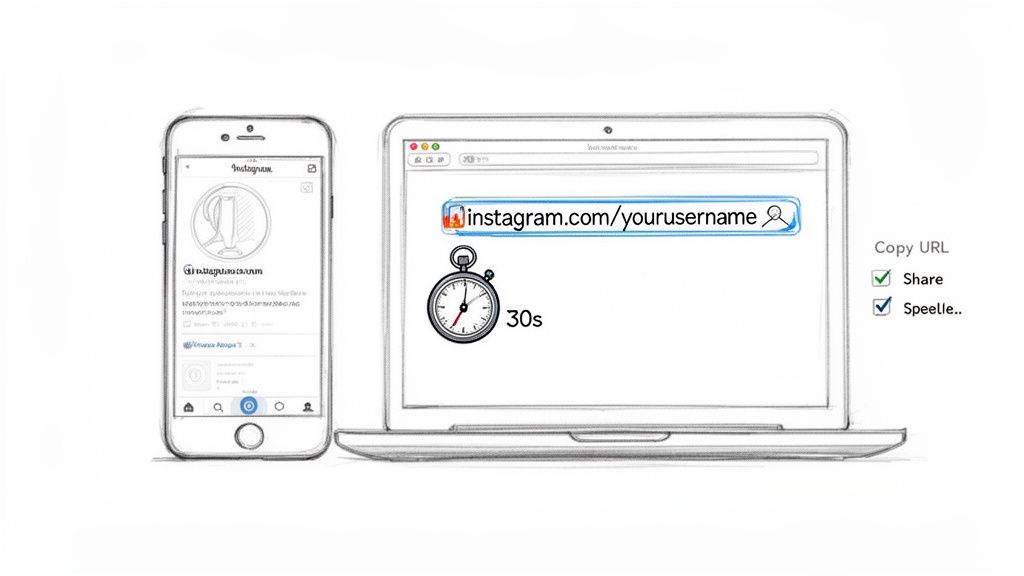
Grabbing your Instagram URL is super simple. If you're on a desktop, just head to your profile and copy the link from your browser's address bar. On the mobile app, go to your profile, tap "Share profile," and then hit "Copy link." Done.
Your Instant Guide to Finding Any Instagram URL
Knowing how to quickly find an Instagram URL is a core skill for anyone serious about growing on the platform. It's something you'll do constantly.
Think of it as your digital business card. The simple link—instagram.com/yourusername—is the front door to your entire profile.
You’ll find yourself needing this link all the time, especially when you're:
Setting up your link-in-bio page with tools like Linktree.
Connecting your account to social media management platforms.
Adding your Instagram handle to an email signature or website footer.
Sharing your profile directly with potential partners or new followers.
Running paid ad campaigns that drive traffic back to your account.
In this guide, we'll cover all the bases—from finding your own profile link to grabbing URLs for specific posts and even troubleshooting common hiccups. Let's get into it.
Finding Your Main Instagram Profile URL
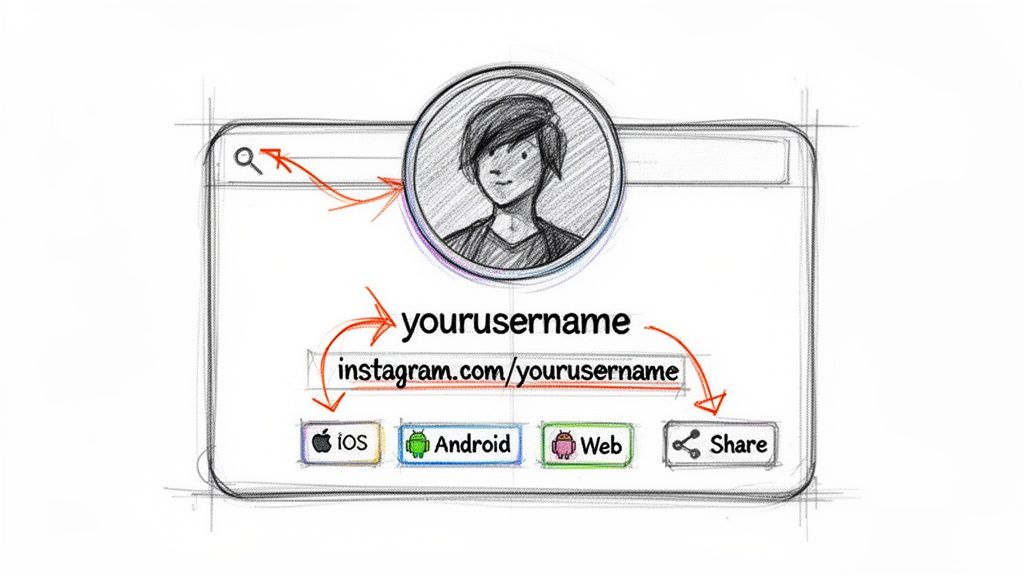
Think of your Instagram profile URL as your digital business card. It’s the one link that points everyone to your entire grid, your bio, and all your contact info. While a link to a single post is temporary, your profile URL is the permanent address for your brand on the platform.
Every profile URL follows a simple structure: instagram.com/yourusername. Sure, you could type this out manually, but that's just asking for a typo. The safest bet is always to copy the link directly from the app or a browser.
For the 200 million+ businesses using Instagram, having this link on hand is non-negotiable. You’ll need it for everything from your email signature to connecting new marketing tools. It’s a simple but vital step for getting seen on a platform with over 3 billion monthly users. Check out more on Instagram's user growth and business impact.
Get Your URL from a Desktop Browser
Honestly, the quickest way to grab your URL is on a desktop or laptop. The link is sitting right there in the address bar, no digging required.
Here’s how to do it:
Fire up your favorite browser (Chrome, Safari, you name it).
Head over to instagram.com and log in if you need to.
Click your profile picture in the top-right corner or side menu.
Once your profile loads, just look up at the address bar. Highlight the entire URL.
Right-click and hit "Copy," or just use the classic keyboard shortcut (Ctrl+C on Windows, Cmd+C on Mac).
That’s it. The link is now on your clipboard, ready to be pasted wherever you need it. If you’re constantly jumping between different accounts, our guide on how to manage multiple Instagram accounts has some great tips to make your life easier.
Find Your URL in the Mobile App
If you’re out and about, you can snag the link just as easily from the Instagram app. The process is pretty much identical for both iOS and Android.
Pro Tip: Save your profile URL in a notes app on your phone. It’s a simple trick, but having a permanent, easy-to-find shortcut means you’ll never have to hunt for it again.
Just pop open the app and head to your profile page. Right below your bio, you'll see a "Share profile" button. Tap that, and a menu will pop up with a few choices.
Hit "Copy link," and your profile URL is instantly copied to your phone's clipboard. Now you can paste it straight into a text message, email, or any other app.
How to Get the URL for a Specific Instagram Post
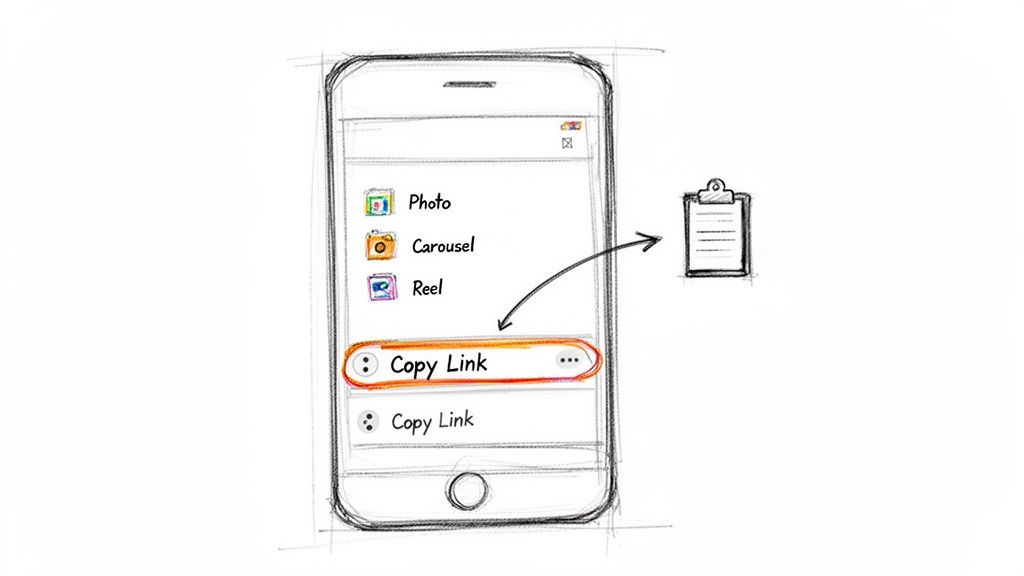
While your profile URL is great for sending people to your main page, sometimes you need to shine a spotlight on a single piece of content. Getting the link to a specific Instagram post is a must-know for running targeted ad campaigns, sharing user-generated content, or guiding a customer to a particular comment.
Imagine a customer asks about a product you featured in a Reel last month. Instead of making them scroll endlessly through your feed, you can drop the direct link right into the chat. It’s a small touch that makes for a much smoother customer experience and helps turn those conversations into conversions.
Finding the Post Link on Mobile
Pulling a post link from the Instagram app on your phone is something you can do in seconds. This method works perfectly for single images, carousels, and Reels.
First, find the post you want the link for.
Tap the little paper airplane icon (the share button) right below the post.
A menu will slide up from the bottom. Just look for the "Copy link" option, which usually has a chain link icon next to it.
Tap it, and boom—the post’s unique URL is now on your clipboard.
You can now paste that link into an email, a support ticket, a campaign brief, or wherever it needs to go. It's a simple, everyday task that fuels a surprising amount of marketing and customer service work. And if you're managing multiple accounts, some of the best free social media management tools can really help streamline this process.
Grabbing the Post URL from a Desktop
The process is just as straightforward on a desktop browser, and it gives you a clear look at how the URL is structured.
When you copy a post's URL, it will look something like
instagram.com/p/Cjx5eYyL9qS/. That string of characters after/p/is the unique code that identifies that specific post.
Just navigate to the post you need the link for. You can click on it from a profile grid or open it up directly from your feed. Once the post is open in its own dedicated view, just glance up at your browser’s address bar.
The URL you see there is the direct link to that content. All you have to do is highlight the entire address and copy it.
With over 200 million business profiles on Instagram, mastering these little workflows is non-negotiable. E-commerce brands, for instance, know that carousel posts often drive higher engagement. Sharing that specific post URL in an email newsletter is a fantastic way to boost its reach and drive sales directly.
Putting Your Instagram URL to Work in Marketing
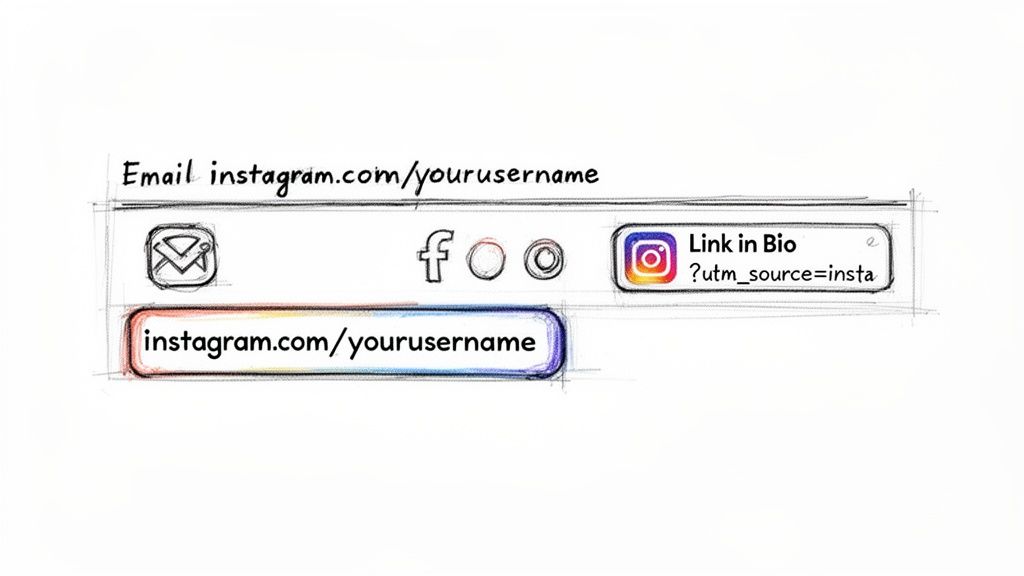
Knowing how to grab your Instagram URL is step one. The real magic happens when you start using that link strategically to pull in traffic, generate leads, and actually grow your brand. It’s a simple string of text, but it's a surprisingly powerful tool in your marketing kit.
On a basic level, your profile URL is key to creating a cohesive brand presence online. You should be adding it everywhere: your email signature, the footer of your website, and across all your other social profiles like LinkedIn or X (formerly Twitter). It’s all about making it easy for people to find you.
But for more advanced marketing—especially for media buyers and e-commerce brands—specific URLs are part of the daily grind.
Advanced URL Strategies for Growth
Think about an influencer collaboration. You’re going to need the influencer's profile URL for the contract, then the specific post URL to track how the campaign is performing. Same goes for affiliate programs, which absolutely depend on unique links to make sure partners get credit for the sales they drive.
And in the world of paid ads? A post URL lets you boost a piece of high-performing organic content, turning engagement you’ve already earned into a targeted ad campaign. In these fast-moving situations, being able to find the right Instagram URL quickly and accurately is non-negotiable. For a deeper look at this, check out our full guide on social media lead generation.
Your Instagram URL is more than just a link—it's the primary channel for funneling traffic from discovery platforms. With 80% of users seeking out products and services on Instagram, that link is the bridge between interest and action.
If you're collecting profiles for a large-scale marketing campaign, using one of the best social media scrapers can save you a ton of time and automate the workflow.
Tracking Success with UTM Parameters
So, how do you know which of your efforts are actually working? That's where UTM parameters come into play.
By adding these simple tags to your Instagram URL before you share it, you can pinpoint exactly where your website traffic is coming from. It’s the difference between guessing and knowing.
For example, you can create one version of your URL for your email signature and another for your TikTok bio. This gives you crystal-clear data on which channels are driving the most clicks, allowing you to double down on what’s working and fine-tune your entire marketing strategy.
Troubleshooting Common Instagram URL Problems
It happens to the best of us. You grab an Instagram URL, plug it into your campaign, and... nothing. The link is dead. It’s a frustrating snag, especially when you’re trying to drive traffic or help a customer. But nine times out of ten, the fix is surprisingly simple.
The number one reason a link breaks is a username change. When someone updates their Instagram handle, their old URL instantly becomes a 404 page. Instagram does not redirect the old address, so anyone clicking the link hits a dead end. This is a big one to remember: if you or a client changes a username, you have to manually update that link everywhere it lives.
Why Your Link Might Be Broken
Another classic issue is a private account. If an account is set to private, any link you share—whether it’s to the profile itself or a specific post—will only work for people who are already approved followers. Everyone else gets sent to a login screen or an error page.
Key Takeaway: Before you start digging into technical glitches, always check the simple stuff. A broken Instagram link is usually just a case of a changed username or a private account.
If a link you’ve shared suddenly stops working, run through this quick checklist:
Check the username: Did the account owner just update their handle? Compare the URL you have with their current profile.
Verify privacy settings: Is the account public? A private setting will block access for non-followers.
Test it in incognito: Copy the link and paste it into a private or incognito browser window. This shows you exactly what a non-follower would see.
Your Top Instagram URL Questions, Answered
Even after you’ve got the basics down, a few tricky questions always seem to surface when you’re dealing with Instagram URLs. We've heard them all from marketers and creators, so here are some quick, no-fluff answers to the most common ones.
Can I Get a URL for an Instagram Story?
Yes, but there’s a big string attached: the link is temporary. While a Story is live, you can tap the three-dot menu and hit "Copy Link." The problem is, once that Story vanishes after 24 hours, so does the link. It'll just lead to an error page.
If you need a permanent link to that content, your best move is to add it to a Story Highlight. That pins it to your profile, giving it a stable home and a URL that won't break.
What Happens to My Old URL If I Change My Username?
This one trips a lot of people up. The moment you change your Instagram username, your old profile URL dies. It’s gone for good and will not redirect to your new handle. Anyone who clicks that old link will hit the dreaded "Sorry, this page isn't available" screen.
Crucial Tip: As soon as you hit save on a new username, you need to go on a mission. Manually update your link everywhere it lives—your email signature, other social media profiles, your website, and any link-in-bio services. Forgetting this means lost traffic and a seriously confusing experience for your audience.
Is There a Way to Get a QR Code for My Instagram Profile?
Absolutely, and Instagram makes it super easy. Just head to your profile page in the mobile app and tap the "Share profile" button. This will instantly generate a custom QR code that links straight to your account.
You can save this QR code as an image and put it pretty much anywhere:
On business cards and event flyers
Inside product packaging or on in-store displays
In your website footer or at the end of a presentation
It’s a fantastic way to bridge the gap between your offline and online presence, letting people find and follow you in a snap.
Ready to turn your Instagram comments into sales? Meet Alto AI. It pulls all your DMs and comments into one smart inbox, filters out the noise, and uses AI to reply in your brand voice 24/7. Never miss a lead again by visiting https://meetalto.ai.